 FIXSIM
Last updated: September 10, 2026
Managing Users & Roles
FIXSIM accounts are multi-user: everyone on your team signs in with their own login, and each user's access is controlled by a role. Users are managed under Setup → Users in the portal sidebar, visible to users with the ClientAdmin role.
Inviting a user
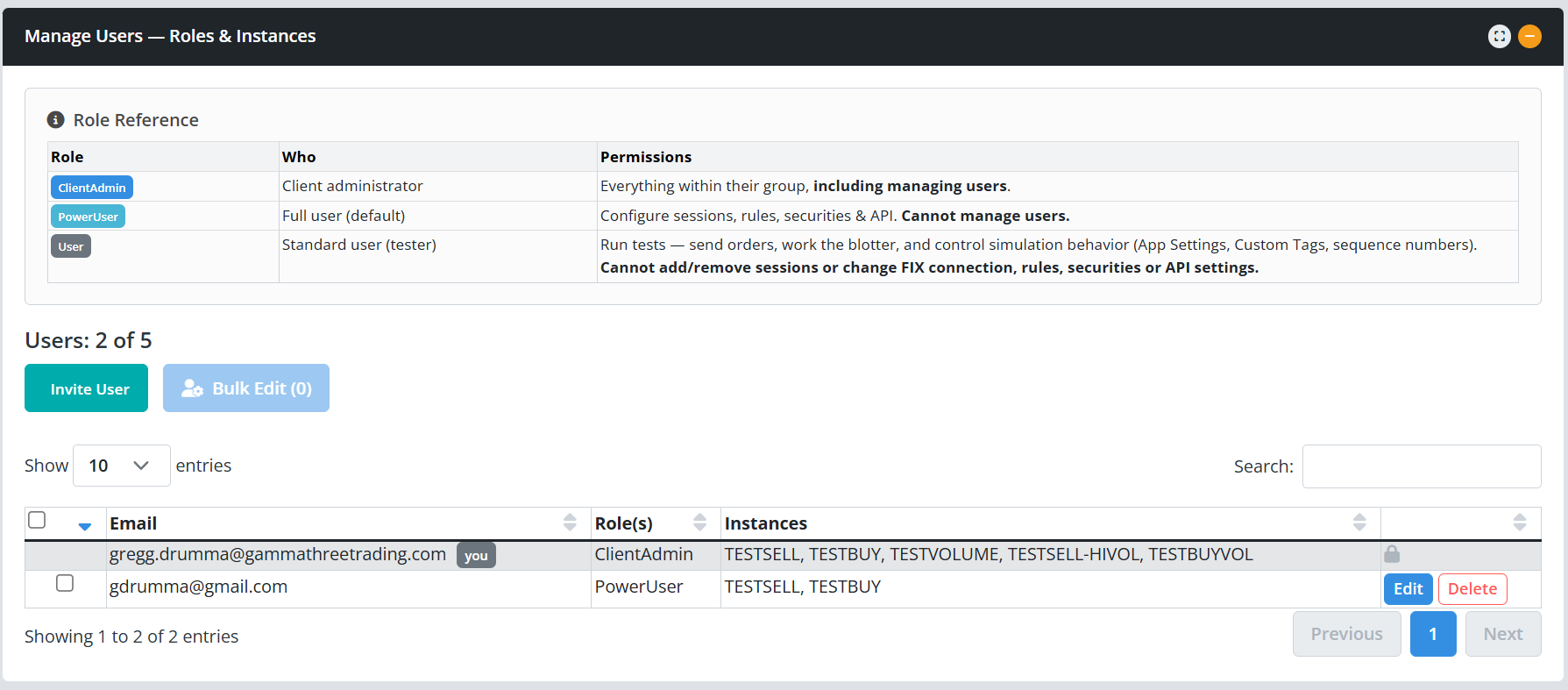
Click Invite User, enter the teammate's email address, and submit.
FIXSIM sends them an invitation email from no-reply@fixsim.com with a link to set their password; once they've set it, they sign in at the portal like any other user.
If the email is misplaced, they can simply use Forgot Password on the portal sign-in page with the same address; it leads to the same setup step.
Enterprise firms can skip invitations entirely: with single sign-on enabled, a teammate from an approved email domain gets an account automatically on first sign-in.
The Users page shows your seat usage (Users: 3 of 5) based on the user limit of your plan. When every seat is taken, the Invite User button is disabled; contact FIXSIM support to add seats.
Roles
Each user has one role, which determines what they can see and change:
| Role | Who it's for | Permissions |
|---|---|---|
| ClientAdmin | Client administrator | Everything within their group, including managing users and the subscription. |
| PowerUser | Full user (default) | Configure sessions, rules, securities & API. Cannot manage users. |
| User | Standard user (tester) | Run tests: send orders, work the blotters, and control simulation behavior (App Settings, Custom Tags, sequence numbers). Cannot add or remove sessions, or change FIX connection, rules, securities, or API settings. |
New invitees start as PowerUser; a ClientAdmin can promote or restrict them afterward. In practice: give User to testers who should operate existing sessions without changing configuration, PowerUser to the engineers who set sessions up, and keep ClientAdmin for whoever owns the account.
Role-based user management is being rolled out account by account. If your Users page shows only the invite list, contact FIXSIM support to have roles enabled for your firm.
What each role sees
The portal sidebar adapts to the signed-in user's role. A User sees the Dashboard and the per-session reports: Overview, App Settings, FIX Session Settings (read-only), Custom Tags, Blotter In, Blotter Out, and Log Replay, but no Setup section. A PowerUser additionally gets Setup: Configure Sessions, Rules, Securities, Algo Tickets, and API. A ClientAdmin sees all of that plus Users and My Subscription.
Editing a user: role and instance access
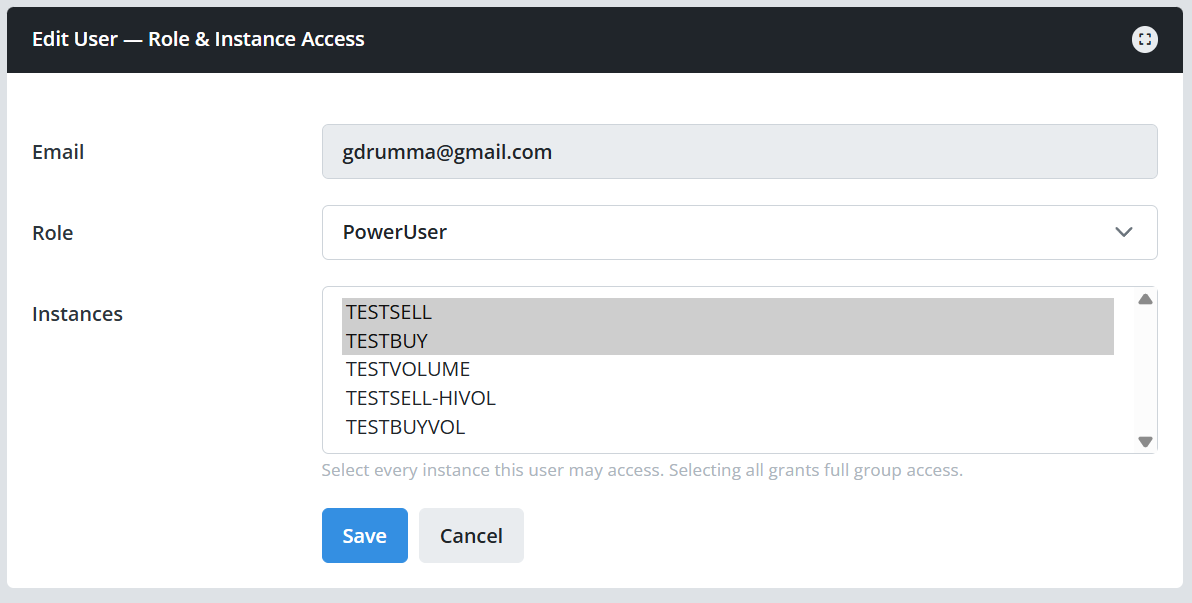
On the Manage Users screen, each row shows the user's Email, Role(s), and Instances. Click Edit to change a user's role or limit which FIXSIM instances they can work in.
Instance access applies to firms with more than one FIXSIM instance: select exactly the instances the user may switch into. Selecting all instances grants full group access, including any instance added to your account later. A narrower selection restricts the user to just those environments (for example, giving an offshore QA team its own instance without access to the UAT instance your production certifications run in).
Need the same change on many users at once? Select them with the checkboxes and click Bulk Edit to apply a role and/or an instance set in one step. Your own account and platform administrators are always skipped by bulk edits.
Removing a user
Click Delete on the user's row and confirm. Removal is immediate and permanent: the login is deleted, not suspended, and the seat is freed for a new invite. Sessions, rules, and messages belong to your firm's account, not to the individual user, so nothing they configured is lost.
Once your team is set up, each user manages their own view of the shared sessions. See Getting Started for the first-session walkthrough.
