 FIXSIM
Last updated: August 13, 2026
Getting Started with FIXSIM
This page walks you through creating your first FIX session and connecting your FIX engine to FIXSIM.
Prerequisites
- Active FIXSIM subscription or trial.
- Network access to the FIXSIM host and port. FIXSIM supports TLS 1.2 encryption for FIX sessions.
- Ability to configure a FIX session on your FIX enabled application (e.g. OMS).
Step 1: Create a session in FIXSIM
- Sign in to the FIXSIM portal.
- Navigate to Sessions.
- Click New Session and configure it (see Configuring New FIX Session for every setting).
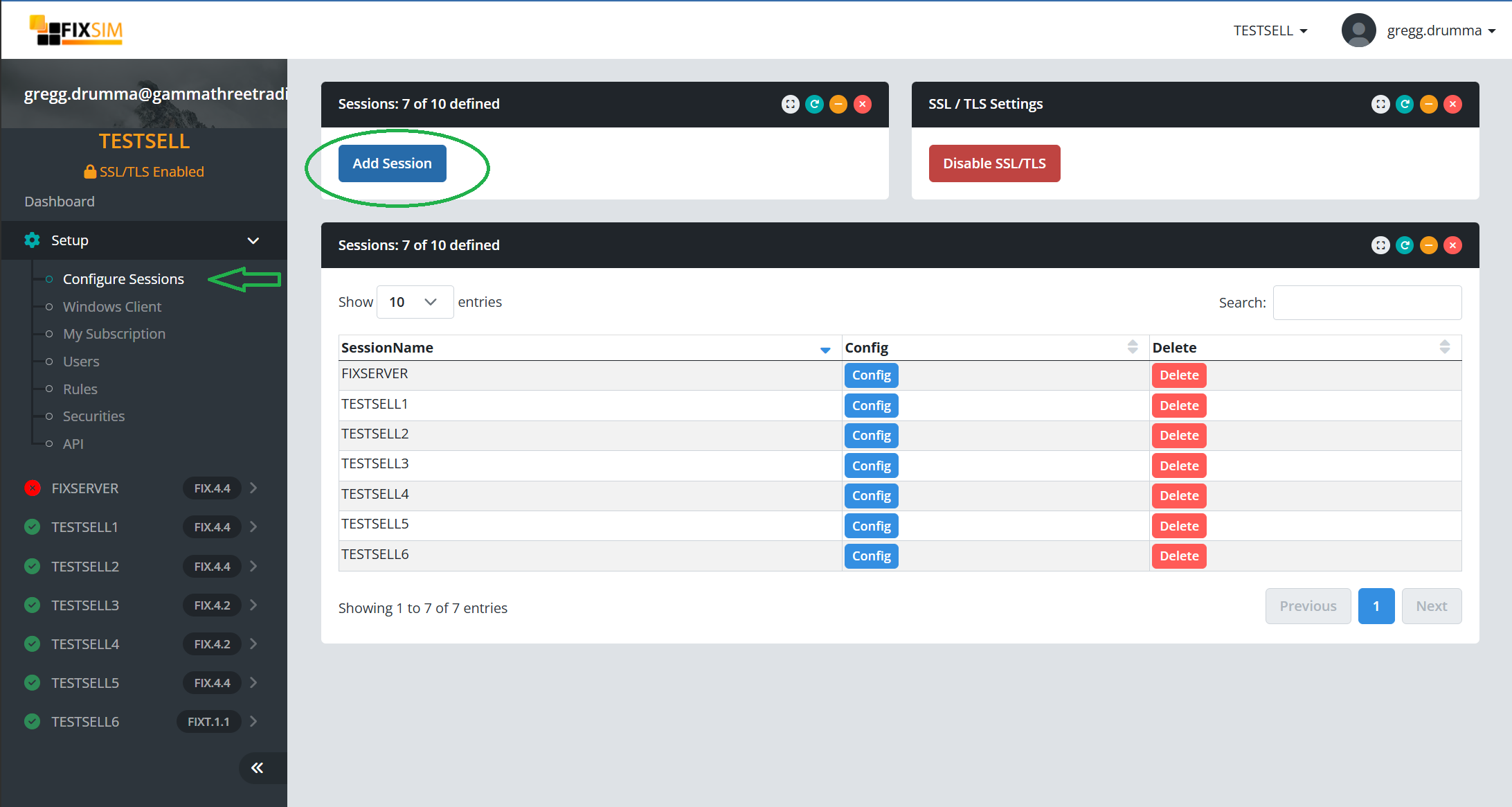
The key choice is FIXSIM's role in the session:
- FIXSIM as Acceptor - FIXSIM listens for the connection. The IP address and port are assigned by FIXSIM (shown as disabled/read-only fields); configure your FIX initiator to point to them.
- FIXSIM as Initiator - FIXSIM makes the connection. You provide the target IP address and port of your FIX acceptor for FIXSIM to connect to.
Step 2: Configure your FIX application
Ensure your FIX application is configured with the session settings from FIXSIM, with the CompIDs in reverse: FIXSIM's SenderCompID is your application's TargetCompID, and FIXSIM's TargetCompID is your application's SenderCompID. The same applies to the optional SenderSubID / TargetSubID if you set them. All of the session's values are visible in its FIX Session Settings report.
Step 3: Start your FIX session
Start the session from your FIX application (or wait for FIXSIM to connect, if FIXSIM is the initiator). The engines exchange Logon messages (35=A) and the session comes online.
Step 4: Verify the connection
In the portal, the session's status indicator in the left sidebar turns green when the session is logged on. Open the session's Overview report and confirm messages are flowing: heartbeats at minimum, and your application messages as you send them.
Next steps
- Send & receive messages - Send your first order and inspect FIXSIM's responses.
- App Settings - Configure auto-acknowledge and auto-execution behavior.
- Rules & Automation - Build automated responses with the Rule Builder.
- Troubleshooting - If the status doesn't turn green, start here.
